Why Public Wi-Fi Is Riskier Than It Looks
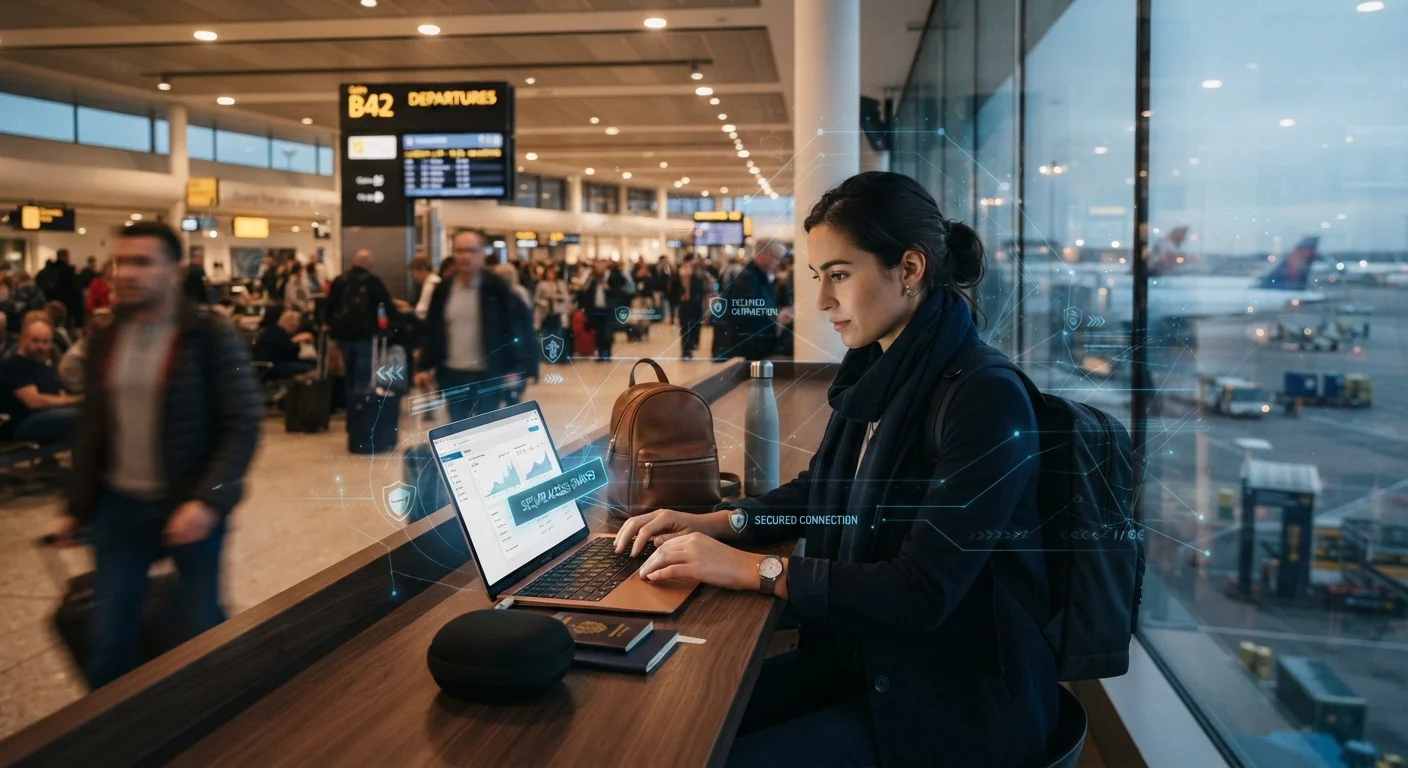
Open Wi-Fi networks — the kind found in airports, hotel lobbies, cruise ship lounges, and cafés — are convenient precisely because they require little or no authentication to join. That same openness is what makes them a practical risk for travelers. On an unsecured network, other users on the same connection can potentially intercept unencrypted data passing between your device and websites you visit.
This does not mean every public network is actively hostile, or that connecting to airport Wi-Fi will inevitably lead to identity theft. The realistic risk depends on the network, the location, and what you do while connected. But the consequences of a compromised login — especially for email or banking — can be serious and difficult to resolve while you are abroad. That makes prevention far easier than recovery.
If you use cruise ship Wi-Fi, the dynamics are slightly different — satellite connections carry their own limitations and considerations. Our guide to cruise ship Wi-Fi covers what to expect at sea. For broader travel safety habits, protecting your belongings in unfamiliar places and checking your accommodation for security round out the picture.
Never Access Banking on Unsecured Wi-Fi
Logging into your bank, brokerage, or any financial account over an open public Wi-Fi network creates real risk of credential theft. If you must check finances while traveling, switch to your phone's mobile data connection instead. This applies equally to hotel Wi-Fi that requires only a room number to log in — 'password protected' does not mean private or encrypted.
What You Need Before You Start
The steps below take 15–30 minutes to set up before departure and require no technical background. Most of the protective measures here cost nothing and run invisibly in the background once configured.
What you will need
VPN Application
Encrypts your internet traffic on public networks, preventing others from intercepting your data.
Password Manager
Stores and autofills strong, unique passwords so you are not typing credentials manually in public.
Mobile Data Plan or Local SIM
Provides a safer alternative to public Wi-Fi for sensitive tasks like banking or email.
Device Screen Privacy Filter
Prevents shoulder surfing — someone reading your screen from beside or behind you.
Fake Hotspots Are a Real Threat
Criminals sometimes set up Wi-Fi networks with convincing names like 'Airport_Free_WiFi' or '[Hotel Name] Guest' to intercept traffic. Always confirm the exact network name with staff before connecting, and treat any network you cannot verify as untrusted. If something looks off — slow connection, unexpected login screens — disconnect immediately.
Step-by-Step: Securing Your Devices on the Road
Follow these steps in order. The first two are done at home before you travel — do not skip them in favor of setting things up on arrival.
Install and configure a VPN before you leave home
A VPN creates an encrypted tunnel between your device and the internet, so even if someone intercepts your data on a public network, they cannot read it. Download and set up a VPN application before your trip — doing it on an unknown network defeats the purpose. Test it at home to confirm it works on all your devices. Most VPNs can be activated with a single tap once configured.
Turn off auto-connect and file sharing
Most devices automatically reconnect to known networks and have file sharing enabled by default — both are liabilities on the road. On your phone and laptop, disable 'auto-join' for Wi-Fi networks and turn off AirDrop, Bluetooth discoverability, and any shared folder settings. On Windows, set your network type to 'Public' when connecting in airports or hotels — this automatically applies stricter firewall rules.
Verify the network name with staff before connecting
Before connecting to any Wi-Fi network in a hotel, airport, or café, ask a staff member for the exact network name and password. Do not rely on what appears in your device's network list — rogue hotspots with convincing names are a documented method used to capture login data. If no staff member is available, look for printed Wi-Fi details on a receipt, table card, or official signage.
Activate your VPN immediately after connecting
As soon as you join a public network, turn on your VPN before opening any app or browser. Do not browse, check email, or open social media first — your device may begin syncing data automatically the moment a connection is established. Make activating your VPN a reflex: connect to Wi-Fi, then VPN on, then proceed.
Use HTTPS sites and avoid sensitive logins on public networks
Check that any website you visit shows https:// in the address bar — the 's' indicates the connection between your browser and the website is encrypted. Avoid logging into banking, email, or accounts containing sensitive data while on public Wi-Fi, even with a VPN active. For anything financial, switch to your phone's mobile data. See our guide to protecting your money abroad for related financial safety habits while traveling.
Log out of accounts and forget the network when done
When you finish using a public network, log out of any accounts you accessed and use your device's 'forget this network' option. This prevents automatic reconnection later — including potentially reconnecting to a malicious network with the same name in a different location. Clear your browser's cache if you used a shared or hotel lobby computer for anything beyond casual browsing.
Use Mobile Data for Sensitive Tasks
Your phone's cellular connection is encrypted by your carrier and far harder to intercept than public Wi-Fi. For anything involving passwords, payments, or personal accounts, switching to mobile data — even briefly — is a simple, effective habit. Consider a local SIM card or an international data plan if you'll be traveling for more than a few days.
Your digital security is one piece of a larger travel safety picture. Keeping secure backups of your travel documents and understanding how to protect your travel funds are habits that work alongside the steps above to give you a more complete safety net.